Kiosk Mode Ubuntu: A Practical Setup Guide
If you're setting up an Ubuntu kiosk right now, you're probably not building a science project. You're trying to keep a menu, ordering page, or guest-facing screen alive through busy service without somebody tapping into a desktop, triggering updates, or leaving you with a black display and a manager asking why the screen is dead again.
That changes how you build kiosk mode on Ubuntu. Clean demo setups aren't enough. A kiosk in a restaurant has to survive touch abuse, power blips, browser crashes, stale sessions, and the one staff member who always finds the corner gesture that exits full screen. The good news is that Ubuntu has supported kiosk-style administration for a long time. The Ubuntu Community Help Wiki has documented KioskMode since 2015-08-19, with updates as recent as 2026-05-02, which makes it clear this isn't a brand-new niche trick but a long-running pattern in Ubuntu administration (Ubuntu KioskMode documentation).
Table of Contents
- Why Ubuntu Kiosks Break in the Real World
- Choosing the Right Kiosk Approach
- Building a Working Chromium Kiosk on Ubuntu
- Wayland vs X11 and GNOME Kiosk Sessions
- Touchscreens, Keyboards, and Peripheral Handling
- Running TopFoodApp Menus on a Ubuntu Kiosk
- Hardening, Remote Updates, and Maintenance Checklist
Why Ubuntu Kiosks Break in the Real World
At 9pm on a Saturday, nobody cares that the kiosk passed testing on a workbench Tuesday afternoon. They care that the menu screen just blanked, Chromium came back with a restore prompt after a hard power cut, or a member of staff found a way out to the desktop while trying to unfreeze the page.
That is how Ubuntu kiosks usually fail. Not because Ubuntu cannot do kiosk duty, but because a default desktop install still behaves like a desktop. It wants to sleep, it expects clean shutdowns, it keeps user state, and it assumes the person touching the screen is allowed to reach settings if they click around long enough.
I have seen this most often on restaurant menu boards and self-service screens. The install looks stable during setup. Then service starts, the device gets tapped all day, the circuit behind the display gets switched off without warning, and somebody eventually plugs in a keyboard because "the screen was stuck." Old LightDM and X11 recipes got many of these jobs over the line, but they also left plenty of escape hatches. Newer Wayland-based approaches close some of those gaps, while introducing different operational choices.
The common breaks that cost you service time
- Display power saving is still active. The screen blanks during idle periods, which looks like a crash to staff and customers.
- Browser state survives between users. Cookies, local storage, captive portal prompts, or stale sessions bleed into the next interaction.
- The session can still escape to a desktop. Hotkeys, gestures, GNOME overlays, or a misconfigured display manager expose parts of the normal workstation.
- Updates happen during service hours. Package prompts, browser restarts, and unattended upgrades become a front-of-house problem.
- Nothing supervises the app. If Chromium hangs, closes, or loses GPU acceleration after a bad reboot, the kiosk stays dead until someone intervenes.
Practical rule: If a normal browser crash still requires a person on-site, the kiosk is not ready for production.
The weak point is usually not "web app versus native app." The key decision is how much of the desktop stack you are willing to leave in place. Older Ubuntu kiosk builds often used LightDM, an autologin user, and a browser launch script on X11. That can still work, especially on older hardware or on venues where you already know the quirks. It also leaves more pieces to police. Modern Wayland kiosk sessions and appliance-style setups remove some of that surface area, but they can be less forgiving if you need custom peripherals, legacy signage tools, or oddball touchscreen drivers.
A restaurant menu deployment makes the trade-off obvious. If the machine only needs to boot, show TopFoodApp, recover from a crash, and never expose a desktop, a stripped-down kiosk session is easier to live with than a full GNOME desktop in disguise. If the venue also needs remote support tools, printer testing, staff logins, or ad hoc troubleshooting on the same box, the old desktop-based pattern is tempting. That convenience is often what breaks first.
What actually holds up
The Ubuntu kiosks that survive weekends are the boring ones. They use a dedicated kiosk user. They disable screen blanking and suspend at the OS and session level. They launch the browser from a controlled startup path, not from a random shell profile. They clear or contain browser state. They restart the app automatically if it exits.
Canonical's newer kiosk guidance has moved toward Wayland-native deployment rather than the older "desktop plus fullscreen browser" pattern, which is a useful signal even if you still choose X11 for compatibility reasons (Ubuntu Frame and modern kiosk direction).
What holds up in production is not the prettiest build. It is the one with the fewest moving parts that can still support your hardware, your browser, and your recovery plan. That is the standard I use for cafe and bar menu screens, because the machine will eventually be restarted the wrong way, touched with wet hands, and blamed for a network problem it did not cause.
Choosing the Right Kiosk Approach
At 4pm, a full Ubuntu desktop kiosk looks flexible. At 9pm, when the menu screen has dropped to a login prompt and staff are lining up for the dinner rush, flexibility is usually the problem.
Ubuntu gives you three kiosk patterns that are still practical today. I treat them as three different failure models. The old X11 and LightDM recipe is easy to inspect and quick to repair on-site. The newer Wayland and Frame approach removes a lot of desktop baggage, but asks you to accept a more appliance-style workflow. A plain browser kiosk sits in the middle and is still the right answer for a lot of restaurant menu boards.
Browser kiosk for a single venue
A Chromium or Firefox kiosk fits best when TopFoodApp already runs in the browser and the screen's job is simple: boot, connect, display the menu, recover if the browser exits.
This is the path I still use first for a single restaurant or a bar with one or two displays. It maps cleanly to the old Ubuntu admin playbook. Dedicated user, autologin, controlled session startup, fullscreen browser, restricted exit paths. If the site is the product, wrapping it as a native app often adds work without fixing the problems that wake you up at night.
Those problems are operational. Browser profiles get dirty. Cached state goes stale. A browser update can change autoplay, pop-up, or GPU behavior with no warning. None of that makes browser kiosks a bad choice. It means you need a build you can reset quickly.
Snap-based kiosk for simpler appliance installs
Canonical has pushed Ubuntu kiosk deployments toward Wayland-native tooling for a reason. The old desktop stack works, but it carries a lot of parts you do not need on a wall-mounted menu screen. Canonical's older Wayland kiosk tutorial now points readers toward newer methods, which is a useful marker for where Ubuntu's kiosk direction has gone (Ubuntu Wayland kiosk tutorial).
For a restaurant operator who wants fewer session-level tweaks, Ubuntu Frame and a kiosk app package can be cleaner than maintaining LightDM, X11 session files, browser flags, and desktop overrides. Community guides for that model generally follow the same pattern: install Frame, install the kiosk app, connect it to the display server, and let the system boot straight into the app surface (Ubuntu Frame style setup flow).
That cleaner model has a trade-off. Ad hoc fixes are less convenient. If staff want "just a quick desktop" for printer testing or email, this approach fights them, which is usually a good thing on a public-facing menu screen.
If your app already ships in a mobile wrapper and the hardware decision is still open, compare this with the Capacitor Kiosk plugin for Android. Android hardware can be a better fit when you need tighter single-app enforcement than a repurposed Ubuntu mini PC.
Ubuntu Core and Frame for fleets
For multiple venues, Ubuntu Core with Ubuntu Frame is the one I would choose on purpose rather than drift into. It behaves more like an appliance than a maintained desktop. That matters when you have screens in several restaurants and no one on-site should be editing startup files after close.
The cost is flexibility. You lose some of the old-school Ubuntu habit of logging in, changing a script, and getting back in business five minutes later. For one menu board above a counter, that can feel heavy. For a fleet, it often pays for itself by keeping every box consistent.
Kiosk approach comparison on Ubuntu
| Approach | Best For | Updates | Recovery | Lock-In |
|---|---|---|---|---|
| Browser kiosk on Ubuntu Desktop | Single cafes, bars, one-off menu screens | Managed through apt and browser settings | Easy to debug locally, but easier to break | Low |
| Snap-based kiosk | Small chains that want repeatable installs | Snap-managed and app-centric | Cleaner app restart model | Medium |
| Ubuntu Core and Frame | Multi-venue fleets and appliance builds | Transactional, image-like workflow | Strongest consistency across devices | Higher |
The key question is not "web or native." It is whether you want to maintain a desktop session, an app runtime, or a locked appliance.
For restaurant menu screens, I still start with the browser kiosk unless there is a clear reason to leave the old X11 and LightDM pattern behind. If the hardware is touch-heavy, the deployment needs to be repeatable, or the screens are headed to several locations, the modern Wayland route usually earns the extra setup work.
Building a Working Chromium Kiosk on Ubuntu
At 9pm on a Saturday, nobody cares that Chromium launched once during setup. They care that the menu board came back after a power flicker, did not drop into a desktop, and did not leave a mouse pointer parked over the drinks list. That is the standard I use for an Ubuntu kiosk.
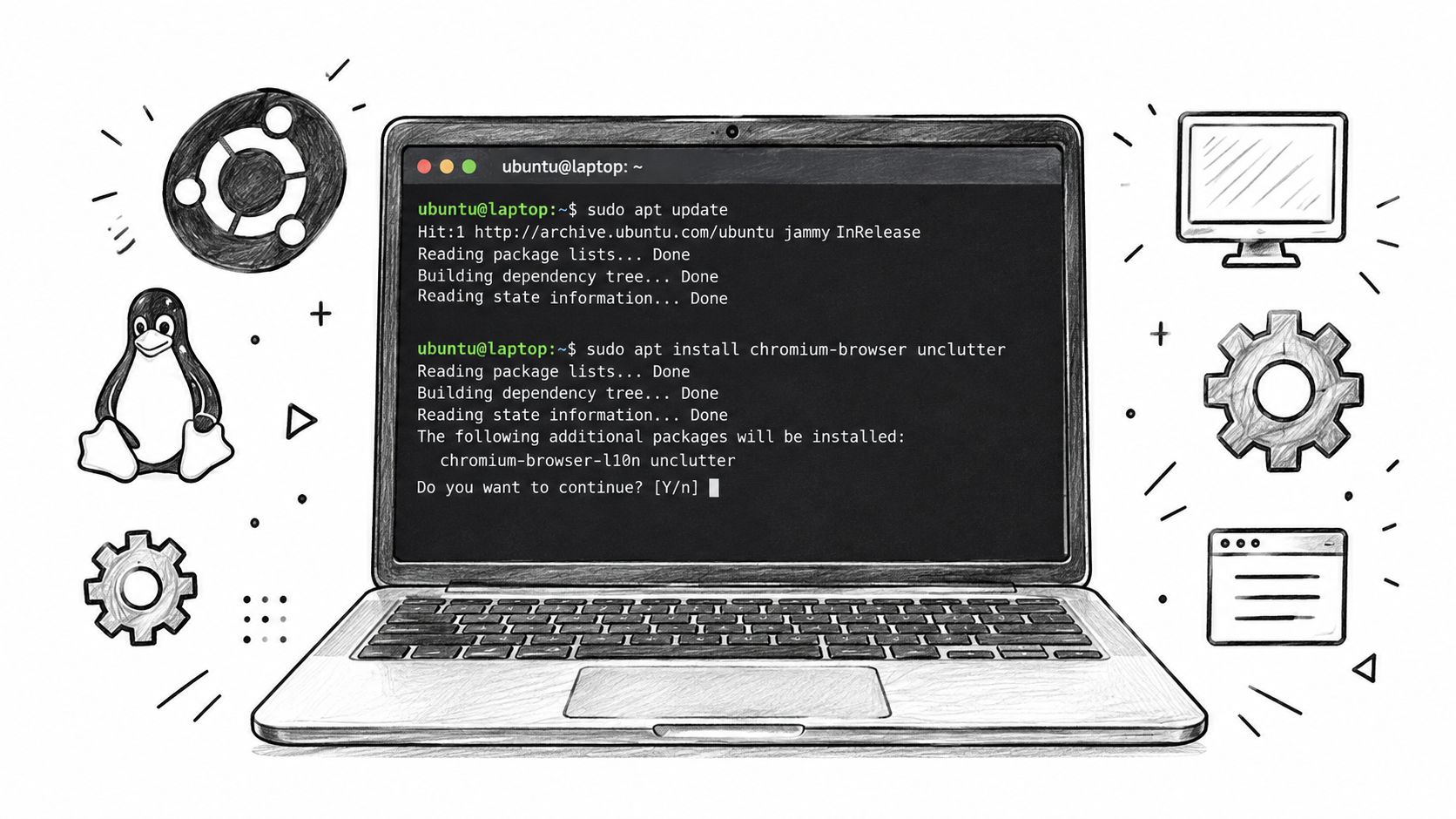
For a single restaurant screen, Chromium on Ubuntu is still the fastest route to something staff can live with tonight. The part old how-tos often skip is session control. --kiosk is only one piece. You also need a dedicated user, autologin that lands in the right session every time, idle settings that stay off, and a restart path for browser crashes.
Create a kiosk user and keep its world small
Use a separate local account for the screen. Do not reuse a manager's desktop login, and do not let the kiosk share a normal browser profile. Shared profiles collect extensions, saved prompts, update nags, and other junk that shows up later on the live screen.
Install only what the kiosk needs:
- Chromium
- unclutter to hide the mouse cursor on X11
- LightDM if you are building the classic X11 path instead of using a GNOME kiosk session
I keep the browser state in its own profile directory as well. That makes resets easy. If a site cache goes bad before service, you can wipe one folder instead of hunting through a general desktop account.
Build the old X11 path cleanly
If you are bridging older LightDM recipes with newer Ubuntu releases, treat X11 as a deliberate choice, not a leftover default. For restaurant menu boards, I still use it on hardware that has already proved stable with LightDM and Chromium. It is familiar, easy to debug locally, and forgiving when you need to touch a startup script in a hurry.
Create a LightDM drop-in at /etc/lightdm/lightdm.conf.d/10-kiosk.conf and set:
- autologin-user to your kiosk user
- user-session to the custom session name you define
Then add a session file under /usr/share/xsessions/ that points to your launcher script.
That launcher script should do four jobs:
- Disable screen blanking and DPMS.
- Start
unclutter. - Launch Chromium with kiosk-safe flags.
- Exit in a way that lets
systemdor the session restart it.
Useful Chromium flags for a menu display:
--kiosk--noerrdialogs--disable-features=Translate--overscroll-history-navigation=0- your fixed start URL
--window-size=if the panel reports odd resolutions
Leave the system browser package alone if the machine is otherwise stable. Put your custom behavior in the session file and wrapper script. Kiosks are easier to recover when the distro-owned files stay close to stock.
Turn off interruptions at the right layer
Ubuntu still assumes it is running a desktop unless you tell it otherwise. Suspend, blanking, lock screens, and idle actions have to be disabled where the active session will read them.
On a LightDM plus custom X session build, old X11 tools still matter. xset s off, xset -dpms, and xset s noblank belong in the wrapper script if the session is X11. Changing GNOME keys on a box that never enters a GNOME session wastes time and leaves you with a false sense that the problem is fixed.
A lot of mixed-era kiosk builds go wrong. Someone copies GNOME settings from a Wayland guide onto a LightDM kiosk, or copies X11 commands onto a newer GNOME kiosk session and expects the same result. Match the fix to the session you boot.
For menus that change through the day, the browser model keeps operations simple. Staff update the web app, not the box over the counter. That same pattern works well for real-time QR menu updates across locations.
Test failure, not just startup
A kiosk that only survives a clean reboot is still unfinished.
Before you leave the site, test these cases:
- Cold boot
- Forced Chromium kill
- Network drop and reconnect
- Display power loss
- Hard power cut and restart
I also check what happens after the browser has been running for a few hours. Some touch overlays and cheap HDMI adapters behave well for ten minutes, then start doing strange things after heat builds up.
A quick visual walkthrough helps if you're validating flags and launch behavior on-site:
Add a watchdog
Chromium will crash eventually. Build for that.
A simple systemd service with Restart=always is usually enough for a single-screen restaurant install. If the wrapper exits or the browser dies, the session starts again without staff touching a keyboard. That one step matters more in the world than shaving another minute off the initial setup.
The goal is boring behavior. Power returns. Network returns. Chromium returns. The menu is back on screen before the bar staff decide the box is cursed.
Wayland vs X11 and GNOME Kiosk Sessions
Most confusion around kiosk mode on Ubuntu now comes from one fact. Old guides assume X11 and LightDM. New Ubuntu systems increasingly point you toward Wayland and GNOME-oriented kiosk sessions. Both can work, but they don't behave the same.
A recent how-to focused on secure Ubuntu kiosks calls out this mismatch directly. Newer guides increasingly mention gnome-kiosk-script-wayland and session-file setup, while older recipes still rely on legacy autologin, Xsessions, and browser launch scripts. That leaves operators guessing which path fits which Ubuntu version and hardware mix (Wayland versus legacy kiosk guidance gap).
What changes under Wayland
With Wayland, the compositor owns more of the session. Screen blanking, input handling, and window behavior are enforced differently. Several old X11 habits don't carry over cleanly, especially anything that depends on xset, direct X session hacks, or window-manager tricks.
That isn't a bad thing. Wayland kiosks are often cleaner. But they punish cargo-culted X11 commands.
To check what a running system is using, look at the session with loginctl and confirm whether the type is wayland or x11. Don't assume based on Ubuntu release alone.
When to use each
| Aspect | X11 Session | Wayland Session |
|---|---|---|
| Browser kiosk recipes | Mature and widely documented | More modern, fewer legacy hacks |
| Touchscreen oddities | Better fallback for old hardware | Better default on current Ubuntu |
| Power and blanking control | Often script-driven | More compositor-driven |
| Session lockdown | Easier to improvise | Cleaner if built the right way |
| Maintenance across versions | Legacy guides still help | Better aligned with current direction |
If you're deploying on Ubuntu 22.04 or newer and the touchscreen is reasonably current, I'd default to Wayland. Keep X11 for older panels, odd GPU stacks, or ancient touch controllers that only behave with legacy drivers.
Practical decision rule
For GDM autologin into a kiosk session, use GNOME's kiosk-oriented path when you want to stay close to the modern Ubuntu desktop stack. For a compositor-managed display appliance, Ubuntu Frame is the cleaner route. For old hardware that already works on LightDM plus Openbox or a custom X session, don't rewrite it just because Wayland is newer.
The wrong move is mixing both models on one machine and hoping the useful parts of each stack will cooperate.
If you're working with seat configuration or session wrappers, keep them minimal. A basic seatd setup should exist only to support the compositor or input stack you run. Don't pile legacy X11 workarounds onto a Wayland kiosk unless you've proven a real hardware need.
Touchscreens, Keyboards, and Peripheral Handling
A kiosk that boots cleanly can still feel awful in the venue if the touch layer is sloppy. Customers notice that faster than admins do. If the screen lands touches a little off, if the wrong monitor receives input, or if an on-screen keyboard pops up at random, the build feels broken even when the browser is technically running.
What to tune before handoff
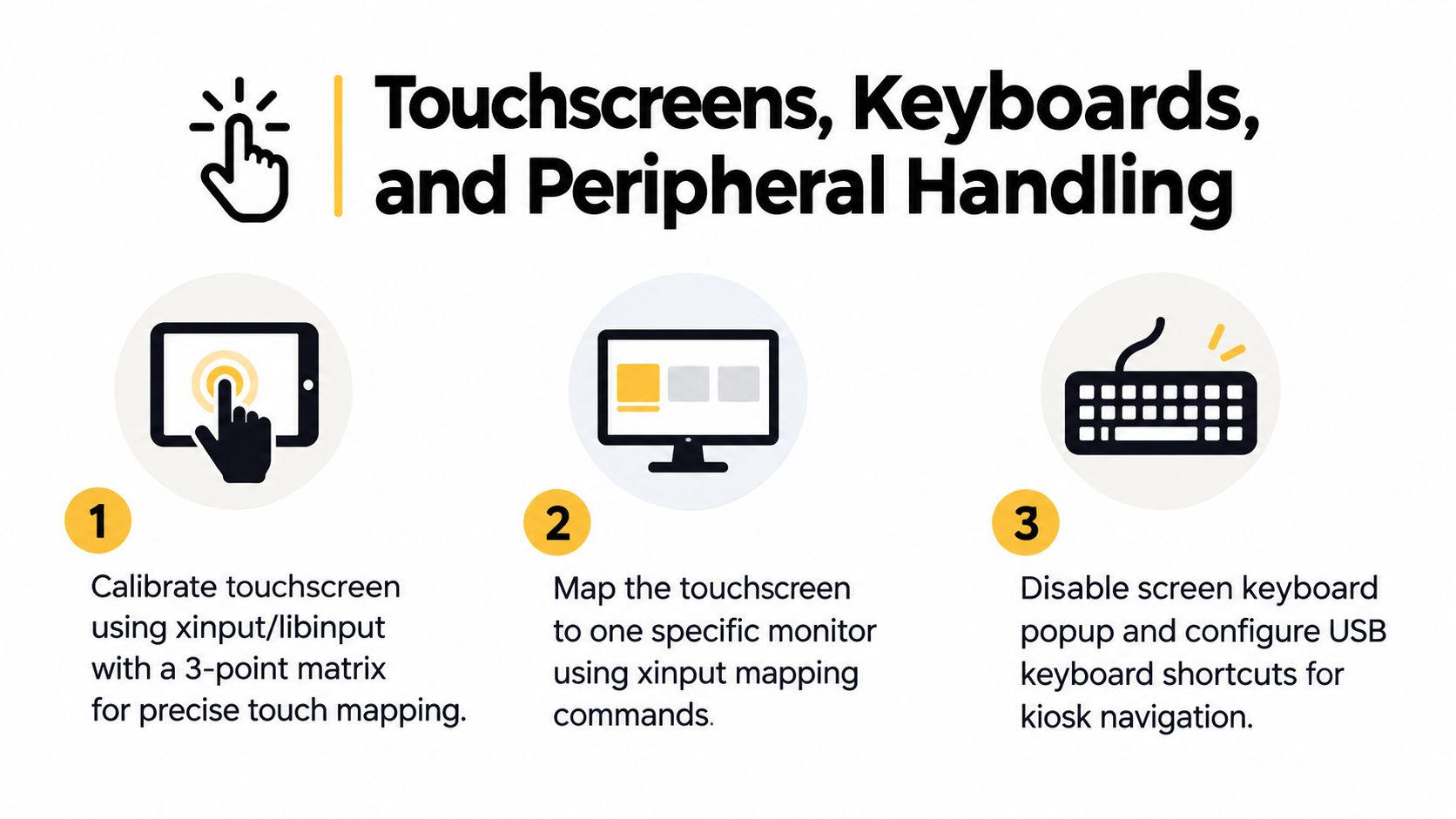
- Calibrate touch input. On X11,
xinputis still useful for older panels. On modern stacks,libinputand desktop display settings are often the cleaner path. - Map the touchscreen to the correct display. This matters on dual-screen menu boards and converted laptops where the internal panel still exists.
- Disable what users don't need. If the venue never uses an on-screen keyboard, turn it off. If a USB keyboard is only for service access, keep it unplugged and controlled.
Venue checklist that saves revisits
When I'm handing off a kiosk in a cafe or bar, I run this quick site check:
- Touch accuracy: Tap all four corners and the center. If a portrait display is mounted after install, re-check rotation and mapping.
- Cursor behavior: Confirm the pointer hides cleanly and doesn't reappear after idle.
- USB lockdown: Allow only what the kiosk needs, such as a printer, scanner, or NFC reader. Everything else should be treated as a liability.
- Wake behavior: Make sure a random touch or lid event on convertible hardware doesn't wake into the wrong state.
- Input fallback: If service staff need emergency access, document the exact keyboard path and keep it separate from the public flow.
For operators building customer-facing menu screens, the same discipline applies to the content layer. Good kiosk hardware can't rescue a cluttered menu. This walkthrough on how to create a digital menu with photos for free is useful because the display and the menu design need to support each other.
A stable kiosk feels invisible. Nobody comments on it because nobody notices the machine at all. They just use the screen.
Running TopFoodApp Menus on a Ubuntu Kiosk
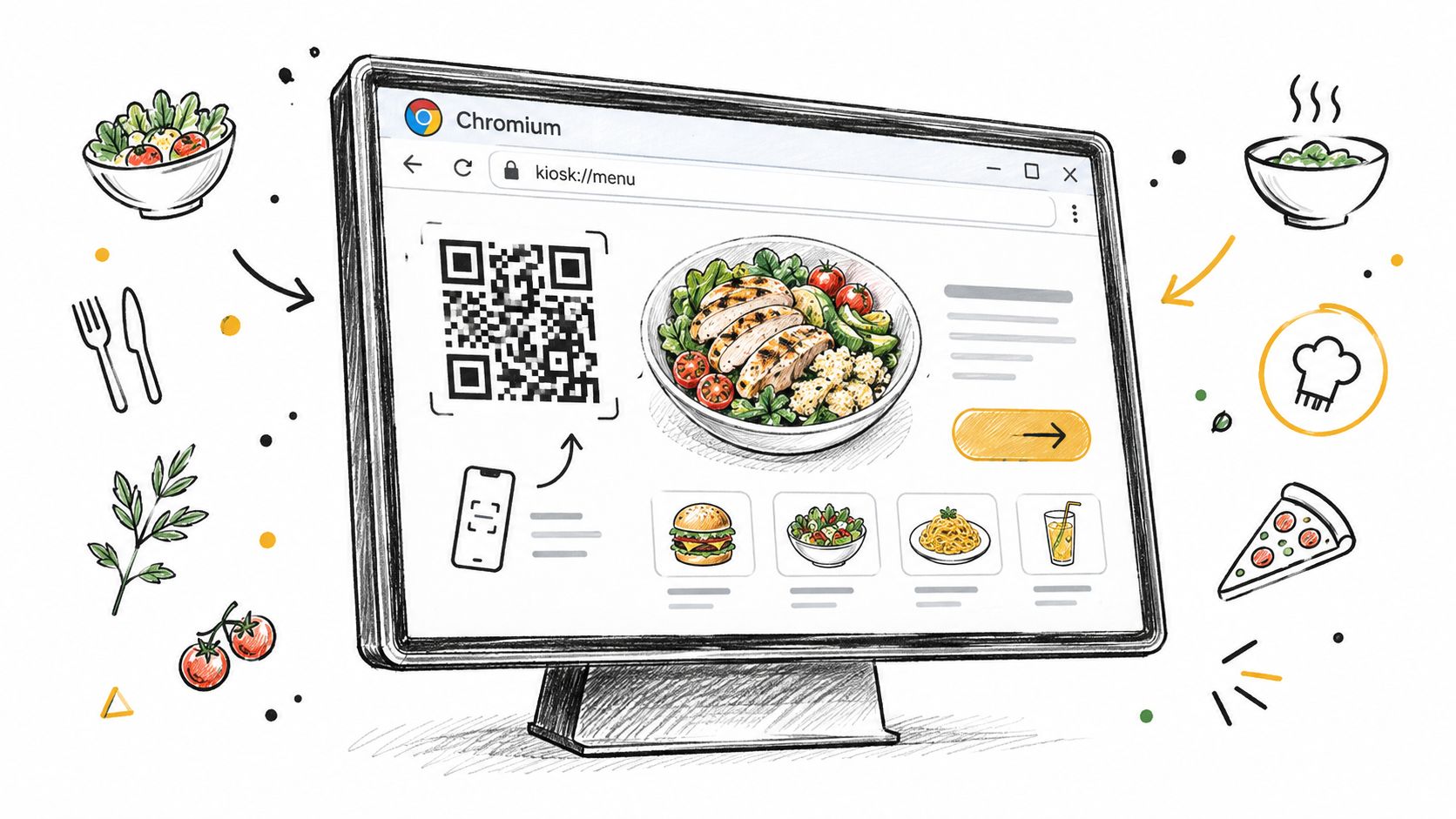
A browser-based Ubuntu kiosk fits QR-driven menu platforms well because the machine only has one job. Open the public menu URL, stay full-screen, and recover if the browser exits. That keeps the venue's publishing workflow separate from the display hardware.
The fit is operational, not just technical
For menu screens, I'd set the public menu URL as the Chromium start page and tune the window size for the actual panel orientation. Portrait boards need different assumptions than counter displays. If the browser locale should drive language selection, launch behavior should respect that rather than forcing staff into manual switching.
The useful part of this model is that the kiosk doesn't need cron jobs, local content sync scripts, or manual file copies every time the venue changes a dish. The browser just loads the live page. If the operator changes menu content, the kiosk reflects it on refresh.
Real-world notes from deployments
Offline behavior matters. If venue Wi-Fi is unreliable, either lean on browser cache behavior for temporary resilience or give the kiosk a separate connectivity fallback such as a modest 4G dongle. That's often more valuable than spending another hour trying to make flaky guest Wi-Fi look stable.
I also keep interaction tight:
- Disable accidental browser behaviors that expose selection or context actions where possible.
- Keep the language switcher reachable without putting any browser chrome or desktop controls on-screen.
- Set display rotation correctly at the OS level for portrait-mounted menu boards, not just with browser zoom hacks.
If you're evaluating whether self-service screens make business sense beyond the technical setup, this breakdown of restaurant kiosk costs and ROI is a useful business-side companion to the Linux build.
For teams that haven't set up their menu stack yet, a free menu creator lowers the barrier because you can test the kiosk workflow against a real menu URL instead of a dummy page.
Hardening, Remote Updates, and Maintenance Checklist
The worst assumption in kiosk work is that once the screen boots and goes full-screen, the job is done. It isn't. A venue kiosk is a remote appliance, and appliances need maintenance rules.
What to lock down
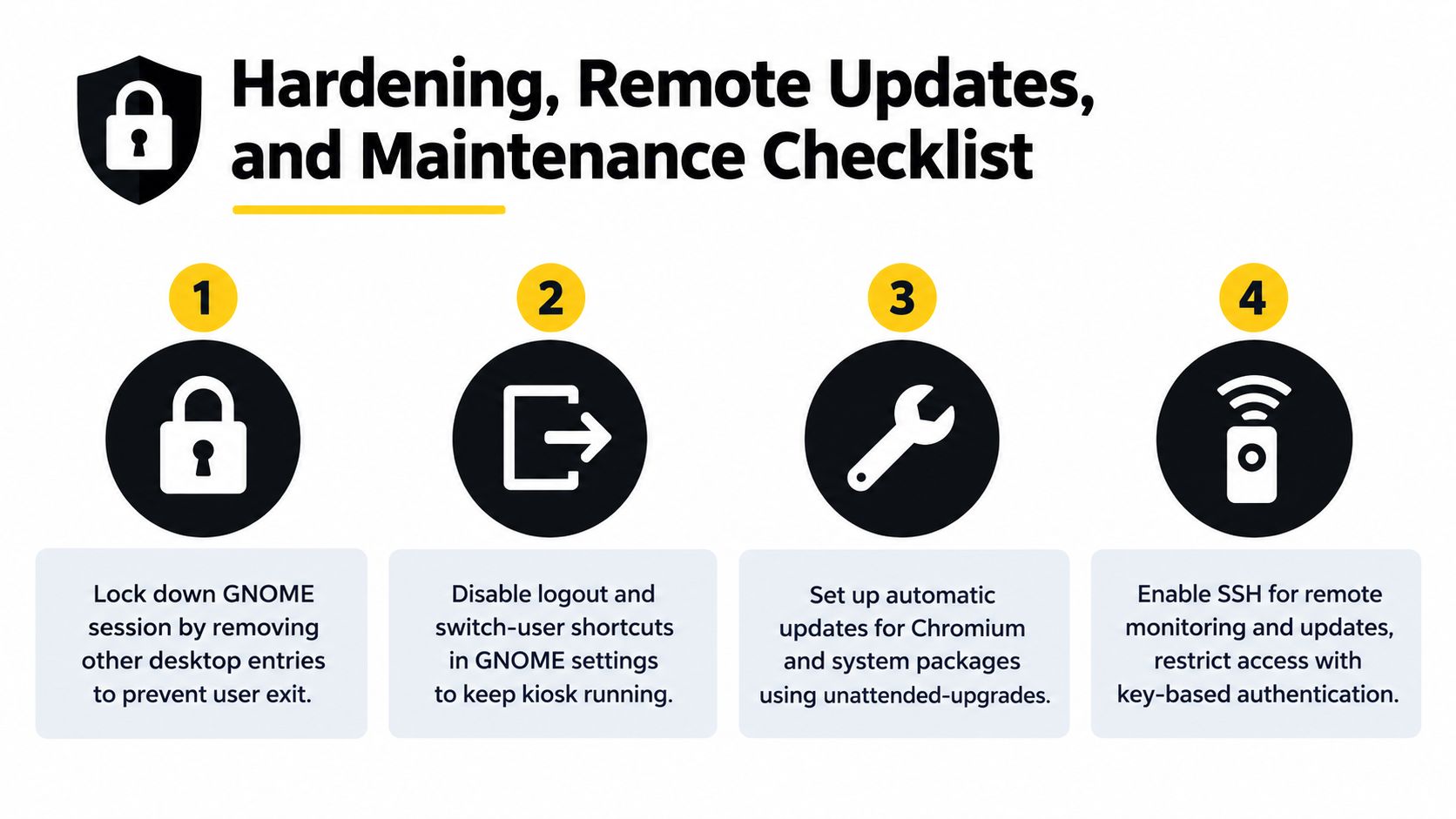
Remove extra desktop entries if the machine doesn't need them. Disable logout and switch-user shortcuts in the active session. If you're staying on Ubuntu Desktop, keep package updates controlled so the kiosk doesn't drift in the middle of service. If you're managing many units, push changes from a central process such as Ansible or a signed repository pull rather than hand-editing each venue box.
A nightly reboot is still a practical fix for long-running browser sessions. It isn't elegant, but it often prevents the slow weirdness that accumulates in unattended screens.
Maintenance rhythm that actually works
- Weekly: Confirm the display loads the correct URL and recovers from a browser restart.
- Monthly: Clear browser junk if the profile is bloating and check storage health with your standard disk tools.
- Quarterly: Apply browser and platform changes during a planned downtime window, then snapshot the known-good image for fast replacement.
Kiosks don't usually fail because Linux is fragile. They fail because nobody owns the update window, the recovery path, or the checklist.
If the machine is important to service, treat it like a small production system. That's less glamorous than tweaking launch flags, but it's what keeps the screen alive when the venue is full.
TopFoodApp gives restaurants a fast way to publish QR-based menus that work well on Ubuntu kiosk screens, especially when you want one stable public URL and instant menu edits without touching the kiosk itself. If you're building a menu display, counter screen, or self-service setup, it's worth testing your browser kiosk against a real restaurant workflow on TopFoodApp.